Voconly Complete Installation and Usage Guide: From Download to AI Voice Input
Voconly is a free, open-source, local-first AI voice input assistant for Windows and macOS. It converts speech to text and can refine, translate, and organize text based on different use scenarios.
Unlike basic dictation tools, Voconly lets you choose your own speech recognition model, configure AI services, and set independent shortcuts for different work scenarios. You can use local speech recognition alone, or enable AI text processing on top of it.
This guide walks you through Voconly's basic setup from download to actual use. Even if you're new to local speech recognition tools, you can follow the steps below.
What you'll learn:
- Install and launch Voconly on Windows or macOS
- Download and choose the right speech recognition model for your needs
- Understand the difference between speech recognition and AI text processing
- Configure AI Provider and enable text polishing features
- Set up shortcuts and create input methods for different work scenarios
- Apply voice input to documents, emails, instant messaging, and AI tools
1. Download and Install Voconly
1. Download the App
First, visit the Voconly official website, and download the version for your operating system.
Voconly currently supports Windows and macOS. Please download from the official website or the Voconly GitHub repository.
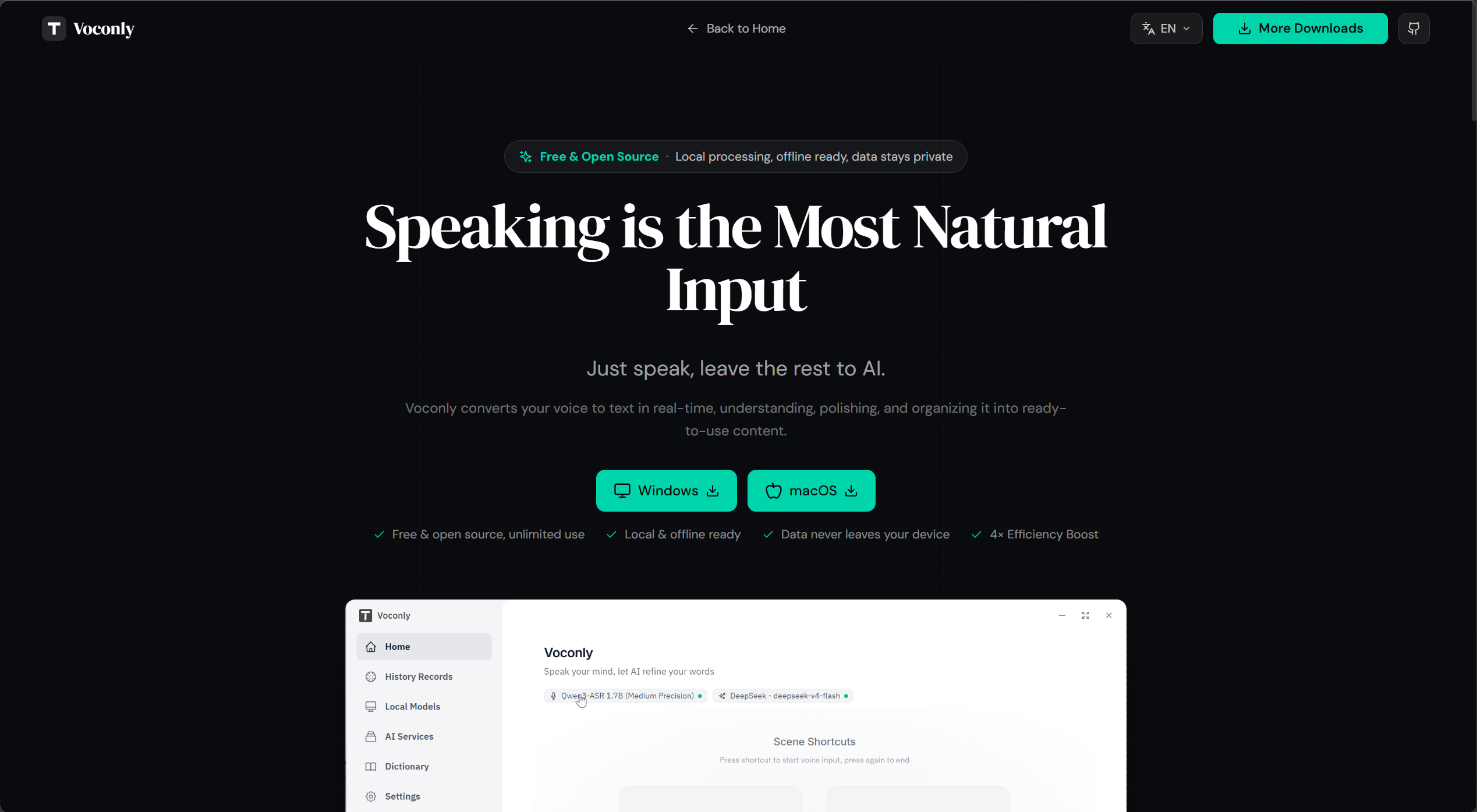
On the homepage, you can see download options for different operating systems. The top right of the page has GitHub link and WeChat group entry for staying updated and joining the community.
2. Windows Installation
After downloading the Windows version, run the installer and follow the prompts.
If Windows shows a "Windows protected your PC" security warning, don't assume the software is corrupted. This warning relates to Windows security checks for unknown publishers or applications.
This is Windows SmartScreen security protection. Voconly is free, open-source software with all code publicly auditable on GitHub. We currently use community distribution and haven't completed Microsoft code signing certification. As the project grows, we plan to apply for a code signing certificate to improve the installation experience.
Alternative: Using Chrome or other browsers may not trigger this warning.
Solution: In the browser download list:
- After download completes, click the three dots (⋯) on the right side of the download item
- Select "Keep"
- Confirm to keep the file and install normally
If you see a different warning or can't confirm the download source, don't bypass the security warning. Check Voconly FAQ: Windows Installation Issues for more help.
3. macOS Installation
When installing on macOS for the first time, pay attention to the system security mechanism.
Since the app isn't signed with an Apple Developer ID, macOS may show "file is damaged" or "cannot verify developer" warnings, or block the app from opening. This doesn't necessarily mean the installation file is corrupted.
This is macOS security protection. Voconly is free, open-source software with all code publicly auditable on GitHub. We currently use community distribution and haven't completed Apple signing certification. As the project grows, we plan to join the Developer Program to improve the installation experience. Until then, first-time users need to manually trust the app.
First, confirm you downloaded the official release, then follow the steps below.
Open macOS "Terminal" and run:
xattr -cr /Applications/Voconly.app
Steps:
- Complete installation: Download and open the DMG file, drag Voconly to the Applications folder
- Open Terminal (Command + Space, type "Terminal")
- Copy and paste the command above and press Enter
- If asked for a password, enter your Mac login password (nothing appears while typing - this is normal), then press Enter
After this, you can open Voconly normally.
Note: This command applies when the app is installed at /Applications/Voconly.app. If you placed the app elsewhere, modify the path accordingly. This command removes extended attributes from the app files without completing developer signing or notarization.
If the app still won't launch, or you see different warnings, check Voconly FAQ: macOS Installation Issues.
After installation, launch Voconly to enter the main interface.
2. First Launch: Download a Speech Recognition Model
Voconly's initial setup isn't complicated. The most important thing is understanding two separate functions: speech recognition models convert sound to text, AI services further process the recognition results.
If you only need speech-to-text, downloading a speech recognition model is enough to start using the app. You don't need to configure AI services first.
1. Select and Download a Speech Recognition Model
Open Voconly and find the voice model selection entry on the homepage. Click the corresponding button, choose a model suitable for your needs, and complete the download.
The first download may take some time, depending on model size, network speed, and device. Once the model is downloaded and successfully loaded, you can start speech recognition.
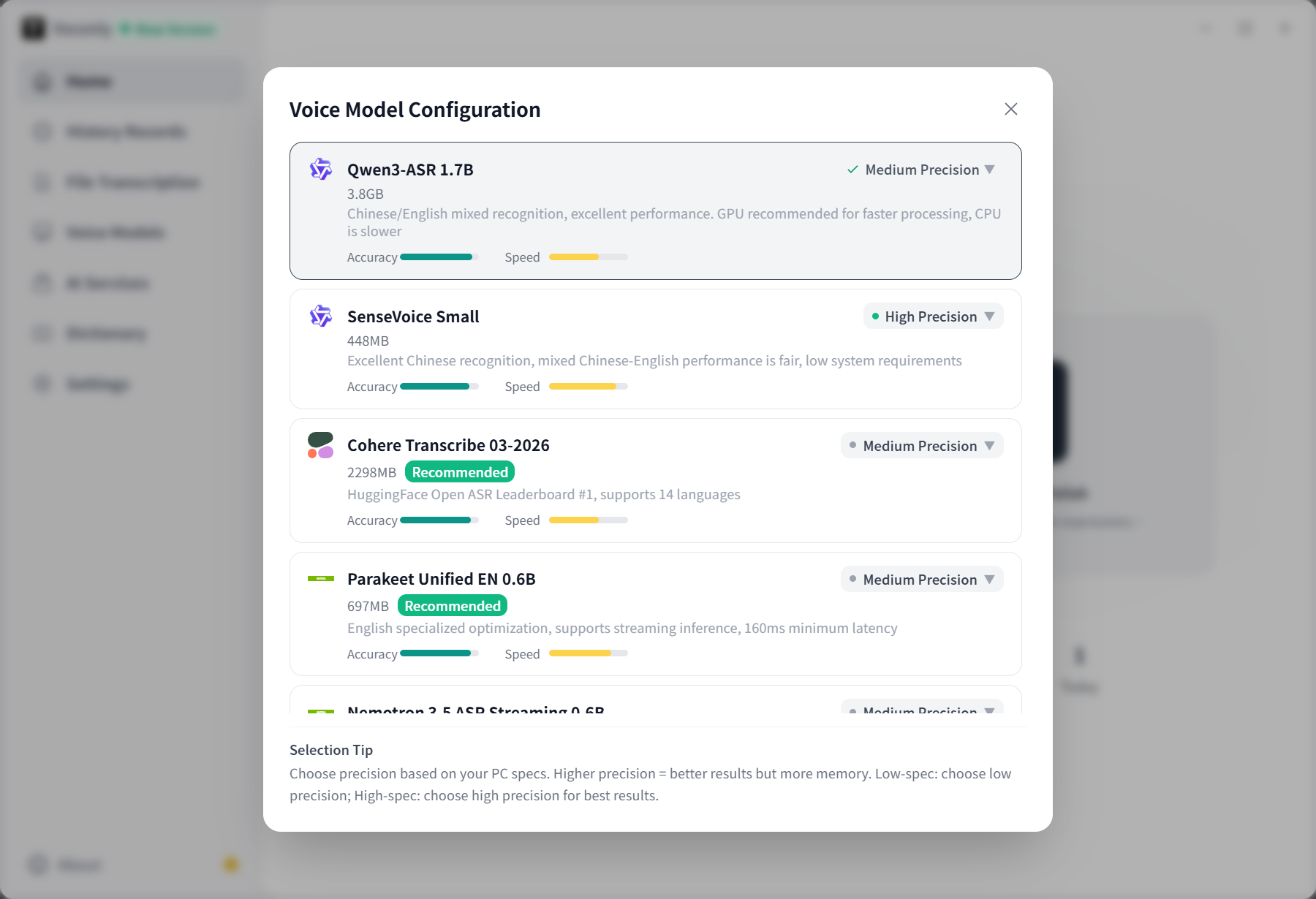
2. Which Model Should You Choose?
Voconly supports multiple speech recognition models, including Whisper, SenseVoice, Parakeet, and Qwen-ASR. Different models vary in language coverage, recognition accuracy, speed, and hardware requirements.
For first-time users, here are initial recommendations:
| Use Case | Recommended Model |
|---|---|
| English input | Parakeet |
| English with high accuracy requirements | Qwen-ASR |
| Chinese input or Chinese-English mixed | Qwen-ASR |
| Chinese short sentences, lower-spec computers | SenseVoice Medium |
| Multi-language recognition or minority languages | Whisper |
These are initial suggestions only. Actual performance depends on microphone quality, ambient noise, device performance, and specialized vocabulary.
For a deeper comparison of model features, hardware requirements, and use cases, read: 2026 Local Speech Recognition Model Comparison.
Recommendation: Don't download all models at once. Start with one matching your primary language, complete your first input test, then decide whether to switch based on actual experience.
3. Configure AI Service: Optional, Not Required
Speech recognition models and AI services are two separate configuration steps.
- Voice Model: Converts microphone audio to text.
- AI Service: Performs post-processing like polishing, translating, and organizing the recognized text.
If you only want to convert speech to text, you're ready to use the app at this point.
If you want to organize casual speech into more formal expressions, or generate clearer content based on different scenarios, you can continue configuring AI services.
1. Open AI Service Configuration
On the Voconly homepage, find the AI service button and click it. The app will enter the AI Provider selection and configuration process.
A Provider is essentially the service endpoint providing language model capabilities. You need to select the Provider you're actually using and configure it with the required parameters.
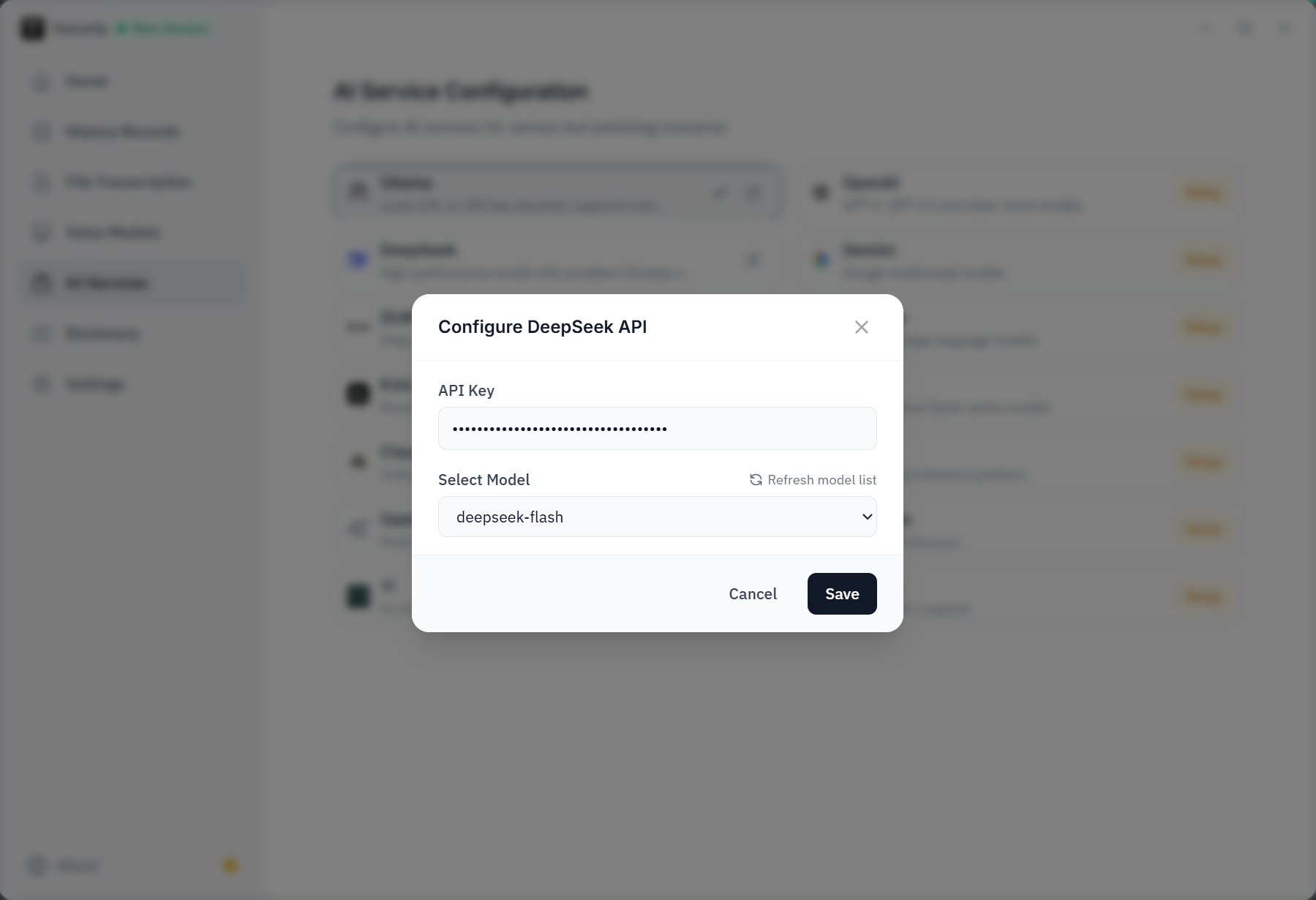
Typically, you'll need to pay attention to:
- Base URL: Fill in the address provided by your service if the Provider requires it.
- API Key: When using services requiring key authentication, fill in your own key.
- Model Name: Select or enter the model supported by the Provider.
- Connection Test: If the interface provides a test function, verify your configuration first.
Different Providers may have different parameter requirements. Follow your service provider's instructions and Voconly's current interface. Don't copy API addresses or model names from other providers.
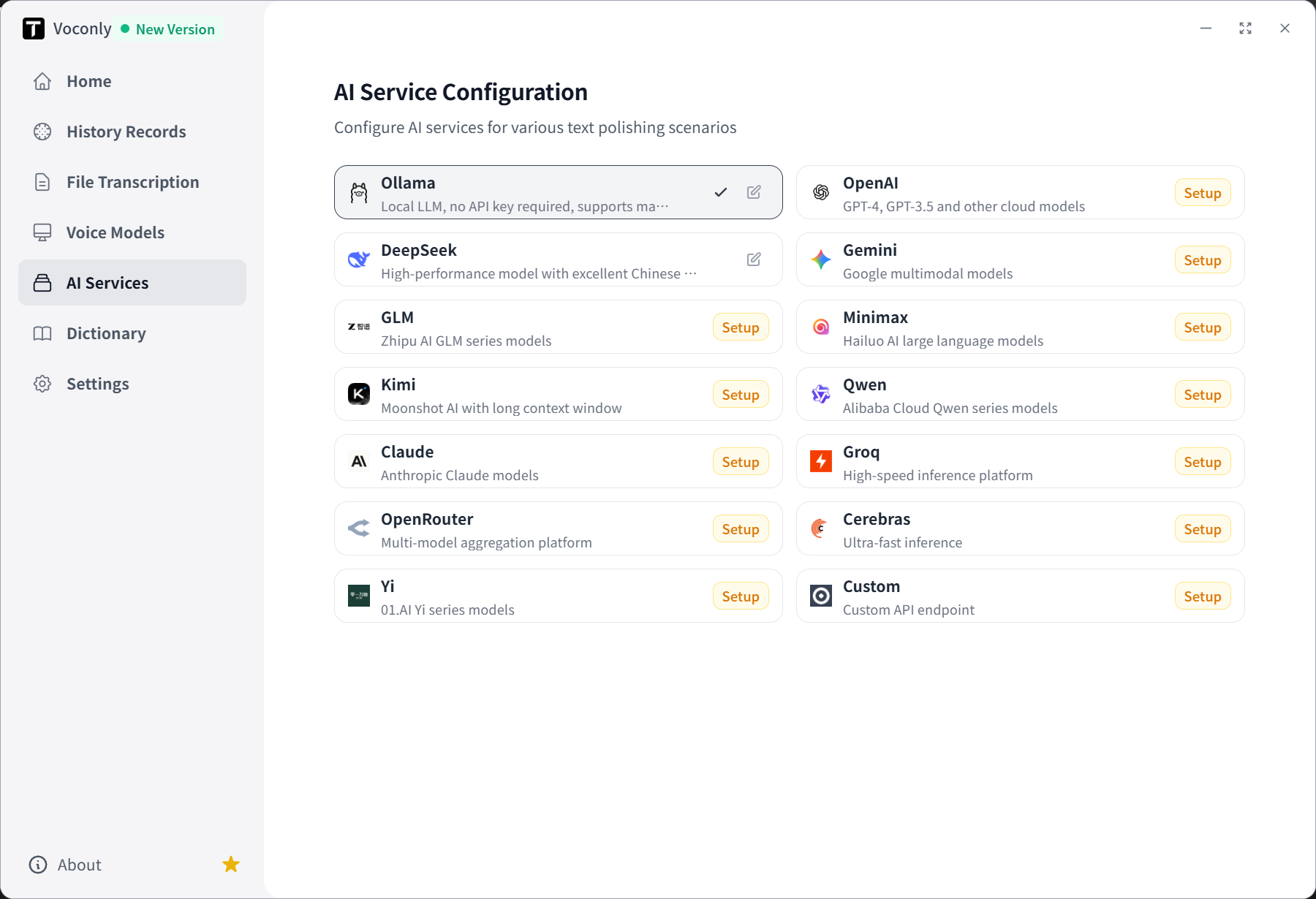
After selecting a Provider, enter the configuration interface to fill in the corresponding parameters:
2. When Will AI Services Be Used After Configuration?
After configuration, you can use AI capabilities in text processing scenarios, such as:
- Organizing casual speech into more coherent sentences.
- Rewriting spoken content into formal work documents.
- Processing specific tasks based on configured prompts.
- Translating or organizing text according to corresponding scenarios.
Note that when using online Providers, text sent to the service will be processed according to the provider's rules, which may incur API fees. If you want processing to stay entirely local, you can choose supported local AI solutions (like Ollama) based on your needs.
Speech recognition itself can be done locally; whether to use online AI services is your decision.
4. Configure Shortcuts and Polishing Scenarios
A key feature of Voconly is that you can set different shortcuts for different input scenarios without manually switching processing modes each time.
1. Understand Default Scenarios on the Homepage
When you first open the app, the homepage provides two default scenarios:
- Light Polish: Preserves original expression as much as possible, only cleaning filler words and unnecessary repetitions to make text more suitable for direct reading.
- Professional Polish: Provides deeper organization of expression, making content clearer and more structured, suitable for formal communication and work documents.
Refer to your current version's homepage for specific shortcuts.
2. Quickly Modify Shortcuts
If default shortcuts don't match your habits, you can adjust them directly on the homepage.
In the shortcut area for each scenario, click the currently displayed shortcut and follow the interface prompts to reset it.
3. Edit Scenarios to Define Your Own Input Method
Shortcuts determine how to quickly invoke scenarios, while scenario configuration determines how text is processed after invocation.
In the scenario management interface, you can adjust scenario names, shortcuts, text processing methods, or corresponding prompts based on configuration options in your current version.
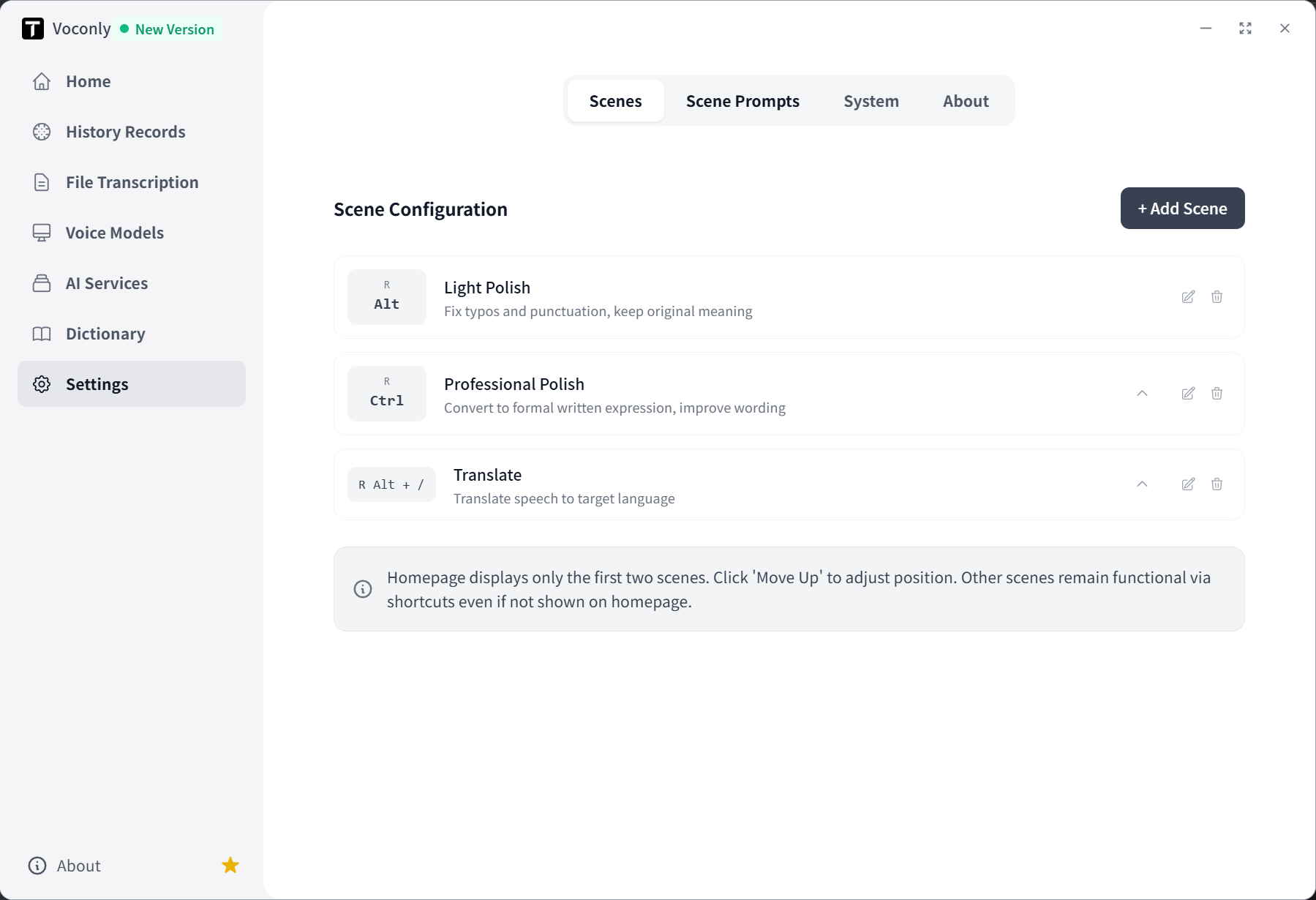
In the scenario editing interface, you can configure custom prompts for scenarios to control how AI processes your voice input content.

For example, you can set different scenarios for different tasks:
| Scenario | Suitable For |
|---|---|
| Light Polish | Daily chat, quick notes |
| Professional Polish | Emails, work reports, draft proposals |
| Translation | Converting spoken content to target language |
| Meeting Notes | Organizing spoken content from meetings |
| Custom Scenario | Processing text according to your workflow |
The above are scenario usage examples. Available default scenarios and configurable options depend on your current version.
5. System Settings and Other Features
Voconly's settings page lets you adjust other app-related options.
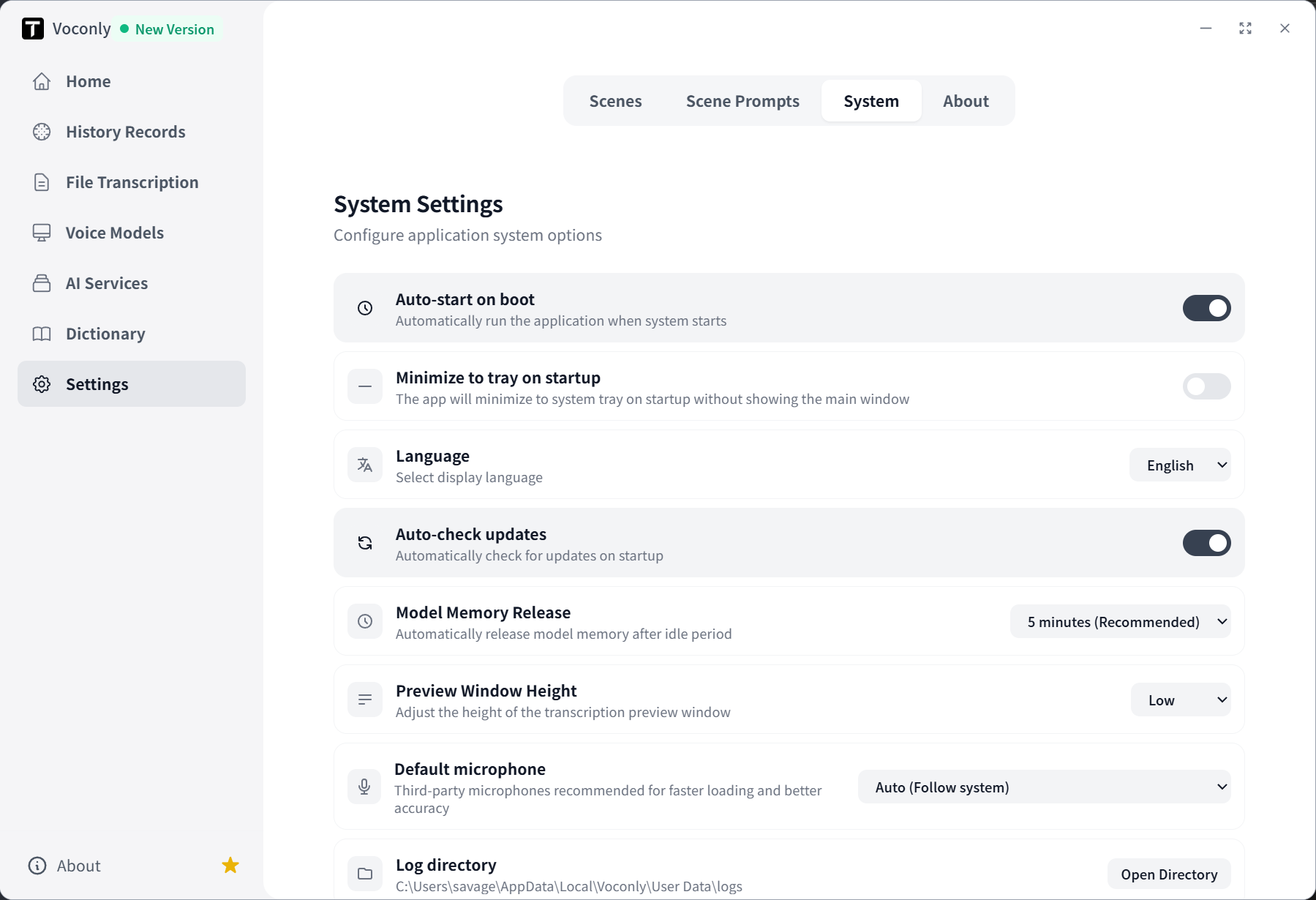
In system settings, you can configure:
- Device Selection: Choose microphone input device
- Output Settings: Control text output behavior
- Language Settings: Set interface language
- Other Options: Adjust app behavior as needed
For first-time use, we recommend keeping default settings. After the basic workflow works, then adjust settings based on actual needs.
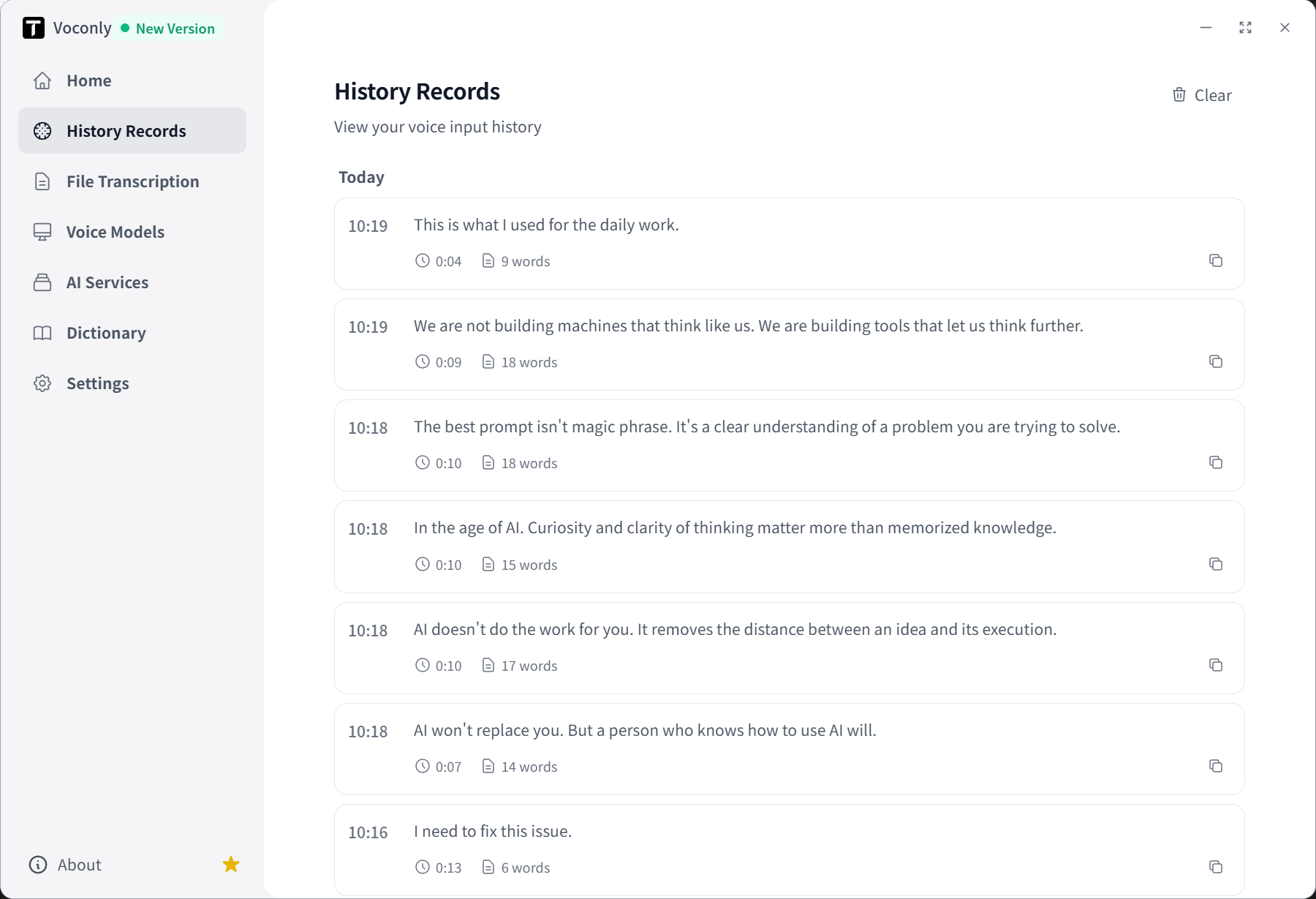
History
Voconly saves your voice input history for easy review and management.
Contact and Feedback
If you encounter issues during use or want to communicate with us, you can find contact information through the following methods:
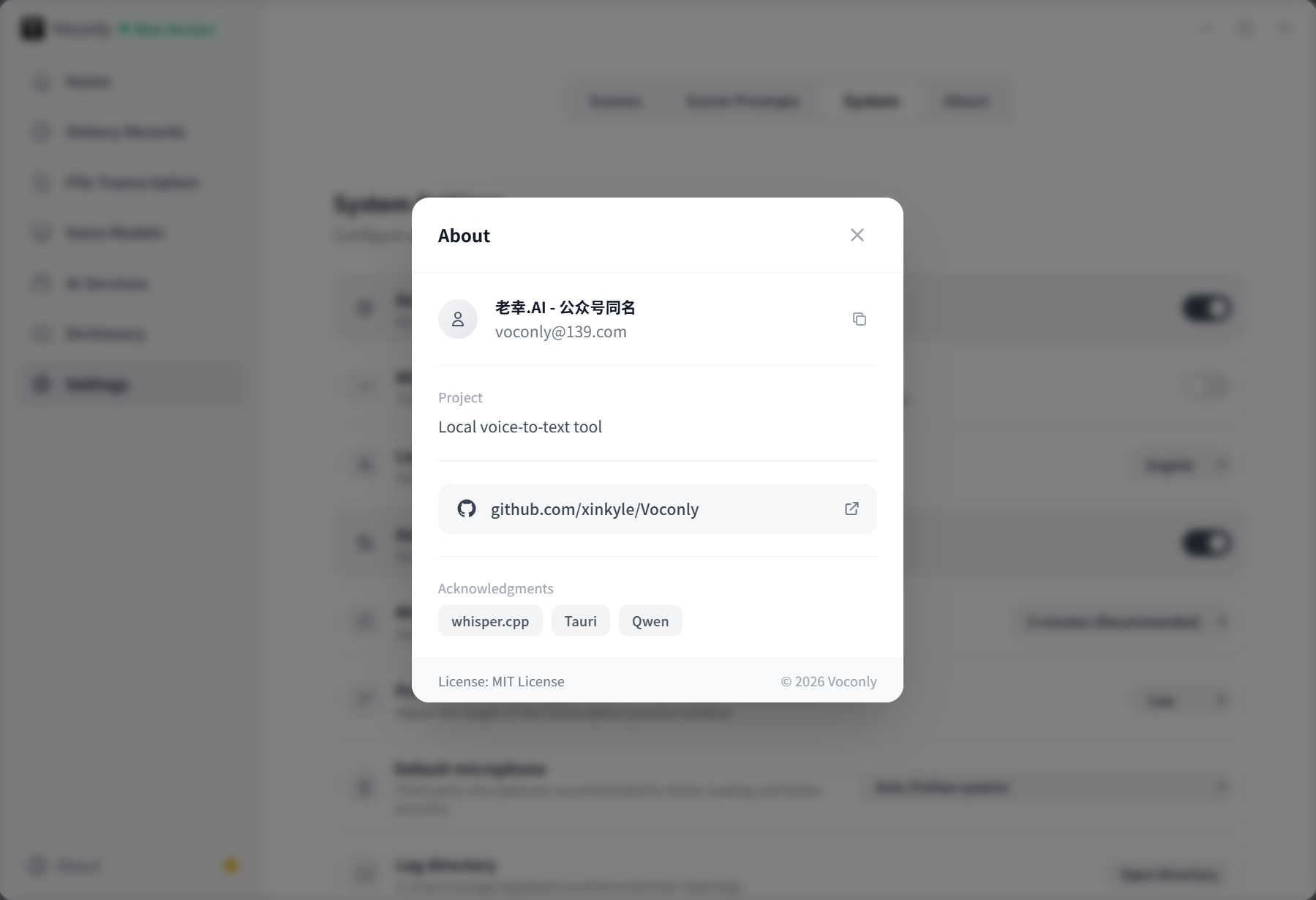
- GitHub: Submit issues or join discussions at the Voconly GitHub Repository
- Email: Send an email to the address shown on the "About" page
- WeChat Group: Visit the Voconly website homepage, click the WeChat icon in the top right to scan and join the community group
6. Complete Basic Setup
Before formal use, we recommend checking the following:
- Microphone: Confirm the device can capture sound normally.
- Voice Model: Confirm the model is downloaded and successfully loaded.
- Shortcuts: Confirm shortcut settings match your habits without obvious conflicts.
- Text Processing Scenario: Confirm you're using the intended light polish, professional polish, or other scenario.
- System Permissions: If the app can't capture sound or input text to target apps normally, check OS-related permissions.
7. Microphone Recommendation: Why We Suggest Using an External Microphone?
Voconly can use the system default microphone or an external microphone. For daily high-frequency voice input, we suggest trying a suitable external microphone first.
There are two main reasons.
First, potentially better response experience.
In practice, a suitable external microphone may make the experience of starting sound capture more direct, reducing waiting from device switching, audio initialization, or system input device processing. However, actual response time still depends on OS, microphone driver, device connection method, and current running state - not all external microphones are faster.
Second, potentially clearer recognition results.
Microphone pickup distance, directionality, noise floor, and noise reduction processing all affect input audio quality. Using a microphone suitable for your environment helps reduce background noise and improve speech recognition stability.
Of course, external microphones aren't required. If your computer's built-in microphone already provides clear voice input, you can start using it directly.
8. Complete Your First Voice Input
Now you're ready for your first real voice input.
1. Select Target Application
Open Notepad, a text editor, an input box in a browser, or any other application that allows text input.
Place the cursor where you want to input content.
2. Press Shortcut and Start Speaking
Press your configured Voconly shortcut and speak one or two complete sentences into the microphone.
After finishing, release the shortcut and wait for the app to complete the corresponding input and processing.
Voconly's basic usage is: press to start speaking, release to end the current input. Specific behavior depends on the current scenario and version settings.
3. Check Recognition Results
For your first test, you can say:
Let's schedule a meeting at 3 PM today to discuss the new product development plan and determine the next phase of work.
Check if the text appears at the cursor position and if punctuation and sentences are basically correct.
If you're using the light polish or professional polish scenario, you can also observe if the output text meets expectations.
If no text appears, don't rush to change models. Check microphone, model loading status, shortcuts, and whether the target app allows input first.
9. What's the Difference Between Light Polish and Professional Polish?
After completing basic input, you can further compare the effects of different text processing scenarios.
Suppose you dictated:
I think this plan is okay, but it looks a bit complicated right now. Can we simplify it a bit?
Different processing methods serve different needs.
Raw Dictation
Focuses on converting speech to text, preserving original expression as much as possible.
Light Polish
Organizes filler words and unnecessary repetitions in spoken language while preserving original meaning and personal expression style.
Professional Polish
Focuses more on logicality, clarity, and formality of expression. For example, it might be organized as:
The overall plan is feasible, but the current implementation complexity is high. We recommend further simplification.
Note that AI polishing isn't simply making sentences longer or more formal. Good processing should preserve original meaning without adding information not present in the original.
For contracts, numbers, technical terms, or important business decisions, still manually verify output results.
10. Using Voconly in Daily Work
Once familiar with the basic input process, you can use Voconly in more work scenarios:
- Email and Work Communication: Dictate main content first, then organize expression through light or professional polish.
- Instant Messaging: Quickly input longer messages, reducing repetitive typing.
- Documents and Proposals: Complete drafts through voice, then do structural adjustments and fact checking.
- AI Tools: Dictate more complete prompts, reducing background information omitted due to typing inconvenience.
- Programming Assistance: Dictate development requirements, code comments, technical documentation, or problem descriptions.
If you frequently switch between different apps, you can set different scenarios for high-frequency tasks, making shortcuts the entry point for corresponding workflows.
For example, use light polish for daily chat, professional polish for writing work proposals, and custom scenarios more aligned with your expression style when describing complex problems to AI assistants.
Note that Voconly handles voice input and configured text processing workflows, which doesn't mean all output can be used without verification.
11. Common Issues and Troubleshooting
If you encounter problems, check in the following order.
1. No Response After Pressing Shortcut
Check first:
- Whether Voconly is running normally.
- Whether the current shortcut is set correctly.
- Whether there's a conflict with other software shortcuts.
- Whether the microphone is available and the system has granted necessary permissions.
- Whether the voice model has been downloaded and successfully loaded.
For more information: Voconly FAQ: What Are the Shortcuts? Can I Change Them?
2. Inaccurate Speech Recognition
Try in order:
- Confirm the selected model is suitable for your current language.
- Improve the distance between microphone and mouth.
- Minimize ambient noise as much as possible.
- Slow down speech rate, especially when containing numbers, proper nouns, or technical terms.
- Test different models with the same real voice audio and compare results.
A larger model isn't necessarily better for everyone. Your final choice should be based on your device, language, and usage scenarios.
3. macOS Says File is Damaged or Cannot Verify Developer
First confirm the installation package is from official channels, then refer to the macOS installation instructions in this article, or check Voconly FAQ: macOS Installation Issues.
4. Windows Says "Windows Protected Your PC"
First confirm the download source and installation package integrity, then follow the Windows installation instructions in this article, or check Voconly FAQ: Windows Installation Issues.
5. Model Download Failed or AI Service Unavailable
This usually requires distinguishing two aspects:
- Voice model download or loading failure: Check network connection, disk space, and model status.
- AI service unavailable: Check Provider, API address, key, model name, and service availability.
If you only need basic speech recognition, you can skip AI service configuration first, confirm local voice input works normally, then troubleshoot the AI aspect separately.
For more issues, check Voconly FAQ.
Conclusion: Start with Voice Input, Gradually Build Your Workflow
Voconly's onboarding process can be summarized in four steps:
- Download and install the app.
- Select and load a speech recognition model.
- Set up shortcuts and text processing scenarios as needed.
- Test in actual work, then gradually adjust models and configuration.
If you only need speech-to-text, completing the first two steps and necessary basic settings is enough to start using; if you want to further organize spoken expressions, then configure AI Provider and corresponding text processing scenarios.
There's no need to study all models and configurations at once. Start by getting it working in your daily apps, then adjust based on real needs - this is usually the more efficient onboarding approach.
Start Using Voconly:
Want to Try Offline Voice Typing?
Voconly is a free, open-source desktop voice input tool for Windows and macOS. It runs speech recognition locally, supports multiple ASR models, and can optionally process text with local or online LLMs.